
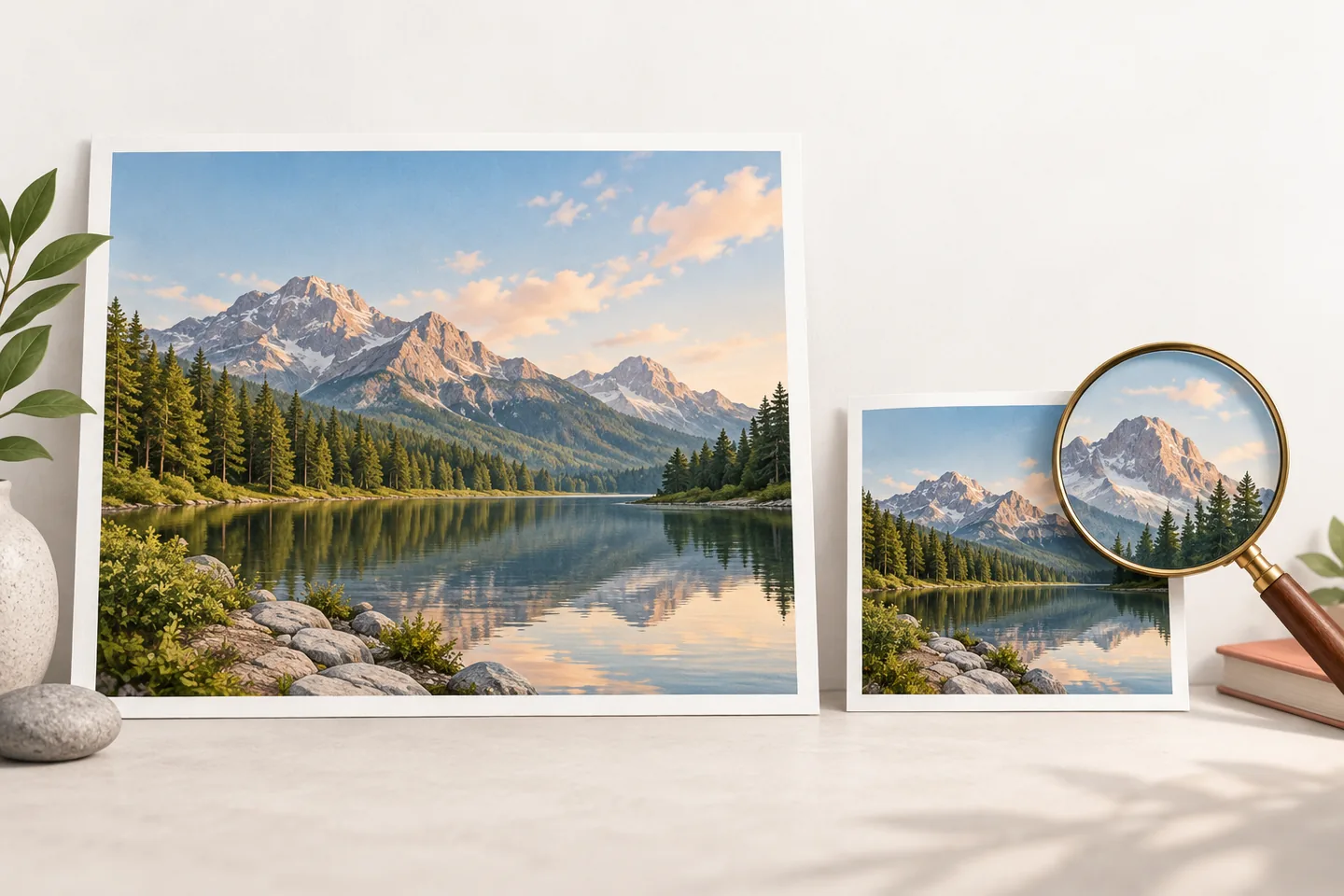
Quick answer: To compress JPEG to 50KB, keep an untouched original, crop unused space, resize to the receiving form's display dimensions, export as JPEG with a moderate quality setting, and inspect the saved file. If it is still over the limit, change one variable at a time instead of repeatedly recompressing the same file.
What a 50KB JPEG limit really means
A request to compress JPEG to 50KB is a file-size requirement, not a universal pixel-size recipe. Two photographs with the same width and height can produce very different JPEG files because one may contain foliage, hair, fine fabric and noise while the other has a plain background. The 50KB label may also be rounded: a portal can reject a file that is only a few bytes above its actual ceiling.
Read the destination instructions before editing. Note the maximum bytes, accepted extensions, minimum width or height, aspect ratio, color rules and whether the image must be a photo, signature or scan. If the form reports a number such as 51200 bytes, follow that exact number and leave a small safety margin. A file that is technically small but has the wrong dimensions or orientation can still fail.
JPEG and JPG refer to the same family of image encoding. The extension spelling is usually not the important difference; the export settings and the bytes in the saved file are. Keep the original photo separate so every attempt starts from a clean source rather than from an already degraded JPEG.
| Requirement | Why it matters | What to record |
|---|---|---|
| Maximum size | A rounded label may hide a strict byte ceiling. | 50KB or the exact byte value. |
| Dimensions | A small file can still be too wide, short or distorted. | Required width, height and aspect ratio. |
| Format | Some portals accept JPEG only; others allow WebP or PNG. | Accepted extension and color mode. |
| Visual purpose | Photos, text scans and signatures tolerate different compression. | Details that must remain readable. |
Prepare the JPEG before exporting
Start with a copy of the original. Cropping away empty margins is often the least noticeable way to reduce data because the encoder no longer has to describe pixels that the viewer never needs. Keep the subject, required border and any official photo framing rule. For a document or signature, remove only blank space that the receiving service does not require.
Next, resize to the intended display size while preserving the aspect ratio. A phone camera may produce thousands of pixels even when a form displays the picture in a small box. Reducing dimensions can preserve cleaner edges than forcing an extremely low quality setting across the full-resolution image. When you compress JPEG to 50KB, do not guess a universal width: use the form's stated dimensions, and keep a required minimum for an ID photo or scan.
Check metadata while you prepare the file. EXIF data can contain camera model, timestamp, orientation and sometimes location. Removing unnecessary metadata may save a little space and reduce accidental disclosure, but it must not remove information the recipient explicitly requires. Rotate the image before export if the viewer depends on the EXIF orientation flag, then confirm that the pixels themselves display upright.
Keep a clean source
Duplicate the original JPEG and work on the copy. Reopening and resaving the same lossy file for every attempt makes quality comparisons harder.
Crop useful pixels
Remove empty canvas only when the receiving form does not require it. Keep the subject, framing and any mandated margins.
Resize with the aspect ratio locked
Use the stated display dimensions or a sensible maximum. Avoid stretching faces, text or signatures to hit a guessed size.
Review metadata and orientation
Strip metadata you do not need, bake in the correct rotation, and reopen the export to confirm the picture still looks upright.
- 1CopyPreserve the original
- 2CropRemove unused pixels
- 3ResizeMatch the display
- 4CleanCheck orientation and metadata
Preparing the pixels first gives the JPEG encoder an easier job and leaves more quality available for the final 50KB export.
Choose JPEG quality without destroying detail
JPEG quality is not a universal percentage. One editor's 70 can produce a different file from another editor's 70 because encoders choose different quantization tables, chroma settings and metadata defaults. Use the number as a starting point, then judge the actual exported file. When you compress JPEG to 50KB, start at a moderate setting and step down in small increments while viewing the same face, fine text, diagonal edge and smooth color area.
Baseline JPEG is widely compatible because the image loads from the top in a familiar scan order. Progressive JPEG stores several passes so a browser can show a rough preview before the full image arrives. Progressive encoding can be useful on the web, but a form that checks the file with an older parser may prefer baseline JPEG. When compatibility is unclear, baseline is the safer export; the target size still depends on the content and dimensions.
Chroma subsampling reduces color detail more than brightness detail, which is often acceptable for photographs but can soften colored text, thin lines or a signature. If the picture contains small labels, keep more chroma detail and reduce dimensions or remove unused background instead. Avoid repeatedly converting between JPEG, PNG and JPEG: each lossy JPEG save can add ringing, blocks or halos around edges.
| Area | Possible artifact | Decision |
|---|---|---|
| Faces and skin | Mottled color or block boundaries | Raise quality or reduce dimensions less aggressively. |
| Small text | Colored edges become fuzzy | Preserve chroma detail or use a lossless format if accepted. |
| Sky and walls | Banding or posterization | Try a modestly higher quality and remove unnecessary pixels. |
| High-contrast edges | Halos and ringing | Avoid another JPEG round-trip; export from the clean source. |
- Use a moderate quality setting as a starting point, not as a byte guarantee.
- Compare the same important details after every export.
- Prefer a clean resize over an extreme quality drop when the image is oversized.
- Choose baseline JPEG when the receiving service has uncertain compatibility.
A repeatable workflow to compress JPEG to 50KB
A target-size compressor can save time when you need an output near or below a limit. Upload the working copy only if the service's privacy policy and the document sensitivity are acceptable. Set 50KB as the maximum, select JPEG, and use a maximum width that matches the destination. The useful result is the downloaded file, not the value shown in a control before export.
If you are working in an editor, export once after cropping and resizing. Measure the file. If it is over 50KB, lower quality slightly or reduce dimensions within the form's rules, then export again from the clean copy. This is the repeatable part of how to compress JPEG to 50KB: change one setting, measure, and inspect. If it is far below the limit but visibly soft, move back up one quality step and keep more pixels. This one-change loop makes the trade-off easy to explain and reproduce.
For example, a 2.8MB phone portrait may first be cropped to the required head-and-shoulders framing, resized to the form's maximum, and exported as baseline JPEG. If the first result is 72KB, a small quality change may produce 49KB. If the same file becomes 31KB with obvious blocks, the better correction is usually a slightly larger dimension or higher quality rather than another round of compression.
For a browser-based workflow, open Image2KB's 50KB image compressor and use the downloaded result as the file you verify.
Set the real target
Use 50KB or the exact byte ceiling supplied by the portal. Choose a small safety margin when the limit is strict.
Export one candidate
Use the cleaned, resized copy, select JPEG, and choose baseline or progressive encoding according to compatibility requirements.
Measure the saved file
Check the downloaded file in the file manager or tool result. Do not infer its size from the source or from a rounded preview label.
Change one variable
If needed, adjust quality, dimensions or crop one at a time. Reopen the result and compare the same visual details.
Keep the accepted export
Rename the final file clearly, keep the original until the upload succeeds, and avoid a last-minute resave in another app.
Check dimensions, metadata and the saved file
After you compress JPEG to 50KB, reopen the actual file that will be uploaded. Confirm the extension, byte count, pixel dimensions, color appearance and orientation. This final check is part of the job, not an optional extra. A preview inside an editor may represent an unsaved state, and some download workflows can change the extension or apply a second optimization step.
Check the main subject at the size the recipient will display. Look at eyes and hair in a portrait, letters and thin lines in a scan, and the edge of a signature. Inspect smooth gradients for banding and high-contrast boundaries for halos. If the result is unreadable, the correct fix may be a different crop or a different allowed format rather than a lower quality setting.
Finally, compare the file with the portal's complete checklist. A JPEG can be under 50KB and still be rejected for an incorrect width, height, background, color mode or name. Keep a copy of the accepted export and the original until the service confirms success.
- Verify the saved bytes, not a rounded control value.
- Confirm width, height, aspect ratio, extension and orientation.
- Inspect small text, faces, signatures and smooth gradients.
- Remove only metadata that the recipient does not require.
- Keep the original until the upload is accepted.
Fix common JPEG compression failures
If the file is still over 50KB, check whether the source is unusually detailed, noisy or oversized. To compress JPEG to 50KB safely, crop unused space, reduce dimensions within the stated minimum, and export from the original copy. A very large photograph can need both a resize and a moderate quality adjustment; there is no single JPEG quality value that guarantees the target for every image.
If a PNG photograph is the starting point, exporting a JPEG copy can reduce the size, but it removes transparency and may change sharp text. For a transparent signature, logo or screenshot, keep PNG or use another accepted lossless format. For a photo, JPEG is usually the more efficient choice, but the portal's accepted extensions always take priority.
If the output has blocks, halos or color smears, stop lowering quality and return to the clean source. Try a slightly larger pixel size with a better quality setting, remove metadata, or ask whether the form allows a different format or a larger limit. If a browser cannot decode HEIC or an unusual JPEG profile, convert it once to a standard JPEG, then start the 50KB workflow from that clean conversion.
| Symptom | Likely cause | Next safe change |
|---|---|---|
| Still above 50KB | Too many pixels or complex detail | Crop or resize within the form's rules, then export again. |
| Text is unreadable | Quality or chroma detail was reduced too far | Raise quality, preserve dimensions and consider PNG if accepted. |
| Transparent background disappeared | PNG was converted to JPEG | Return to the source and use PNG or a transparency-capable format. |
| Image is rotated | Orientation metadata was ignored | Bake the rotation into pixels and verify the saved file. |
| Portal rejects the file | Wrong bytes, dimensions or extension | Read the exact error and recheck every requirement. |
Frequently asked questions
These answers cover the JPEG-specific decisions that matter when a form sets a 50KB ceiling.
Can I compress JPEG to exactly 50KB?
You can target 50KB, but the exact bytes depend on the image, dimensions, encoder and metadata. If the form gives a strict maximum, aim slightly below it and verify the saved file rather than trusting a rounded label.
What JPEG quality should I use for 50KB?
There is no universal quality number. Start at a moderate setting, compare faces, text, edges and gradients, then change quality in small steps after cropping and resizing. The exported bytes are the reliable measure.
Is JPG different from JPEG when I need 50KB?
JPG and JPEG normally describe the same image format. The extension spelling is rarely the cause of a size difference; export dimensions, quality, metadata and encoder settings matter more.
Should I remove EXIF data before compressing a JPEG?
Remove metadata you do not need when privacy and file size matter, but keep anything the receiving service requires. Bake in the correct orientation before stripping the flag and reopen the result to check it.
Why is my JPEG still over 50KB after compression?
The image may have too many pixels, complex texture or metadata, or the quality setting may be conservative. Crop and resize within the destination rules, export from the original copy, and change one variable at a time.
Can I use WebP instead of JPEG for a 50KB upload?
Only when the receiving service accepts WebP. WebP can be efficient, but a smaller file is not useful if the portal requires a .jpg or .jpeg extension. Follow the destination's format rules first.