
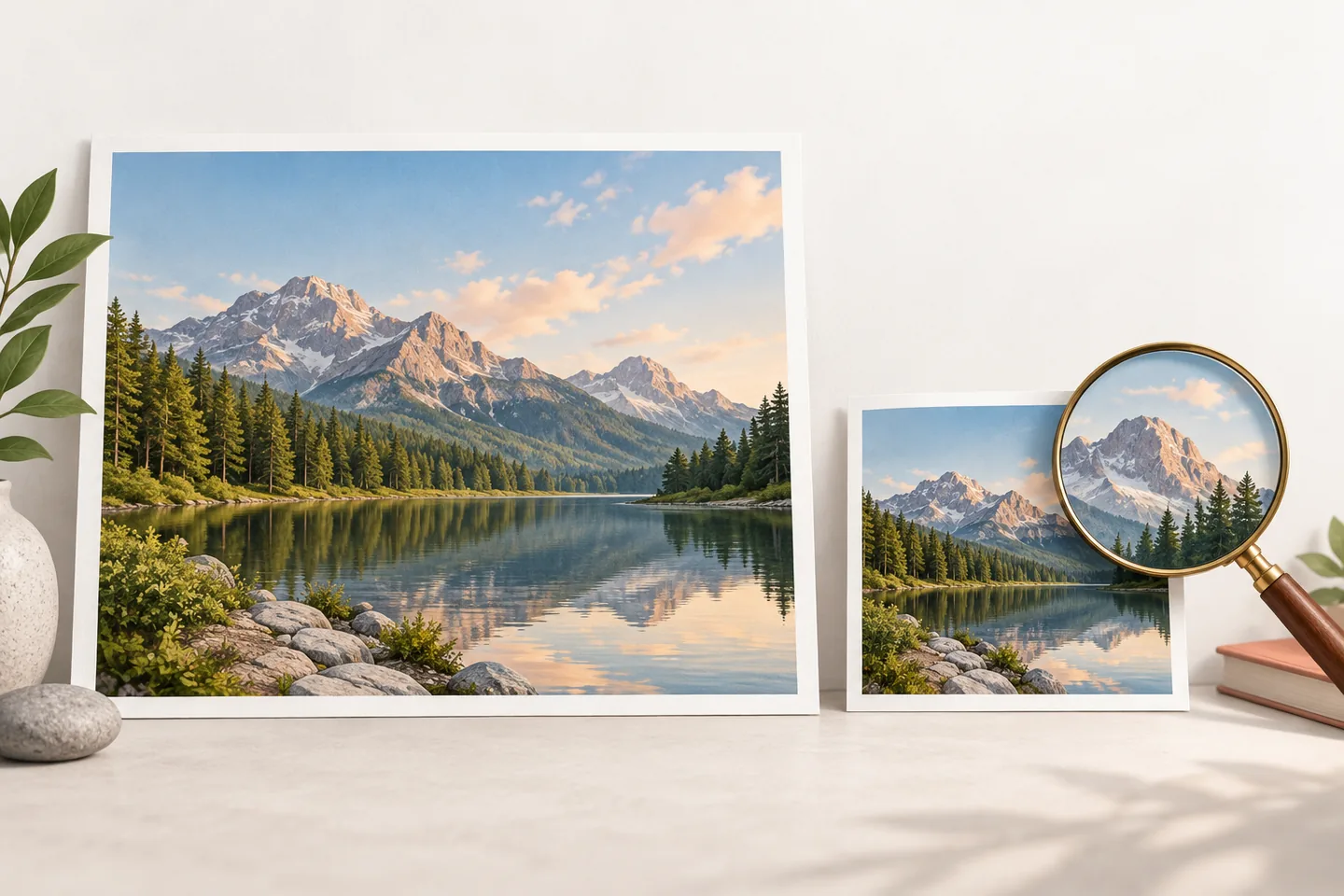
Quick answer: Copy the original, crop unused space, resize to the required display dimensions, and export in a supported format. Lower quality gradually only if needed, then check the downloaded file and exact limit before uploading.
How to compress an image to 50KB in six steps
The safest way to reduce a photo to 50KB is to make useful changes in order instead of pushing one export setting to its minimum. Keep the original untouched so you can return to it if the image becomes too soft, blocky, or small. Work from a duplicate and judge the result at the size the recipient will display it.
Before you start, read the upload instructions for any pixel dimensions, file formats, or exact byte ceiling. A 50KB limit describes file size, not image dimensions: a wide photo and a small portrait can each weigh 50KB while containing very different amounts of detail.
Confirm the upload rules
Check the byte ceiling, accepted formats, and any width or height requirement. If a failed upload reports an exact byte limit, follow that value; a rounded “50 KB” label may not be precise.
Make a working copy
Keep a duplicate separate from the full-resolution original. Compare each export with the source instead of repeatedly compressing an already compressed file.
Crop away unused areas
Crop empty background when it does not help show the subject. This can improve framing and remove pixels before you reduce quality.
Resize to the displayed dimensions
Reduce width and height to the intended display size while preserving the aspect ratio. Keep any minimum dimensions required for an ID photo, signature, or scan.
Choose a compatible format and export
Use JPEG for photos, PNG for transparency or crisp text, and WebP only when accepted. Export from the working copy; repeated JPEG saves can add artifacts.
Inspect the file you will upload
Reopen the export, confirm its size and dimensions, and inspect faces, small text, edges, and transparency. If it misses a requirement, change one setting and export again.
- 1ConfirmLimit and accepted formats
- 2PrepareCopy and crop the source
- 3ReduceResize before quality
- 4VerifyBytes, dimensions, detail
Change one setting at a time so you can see which adjustment reduced the file and which one affected its appearance.
Choose the right format for a 50KB image
The best format depends on the image and on the upload form. A photo contains gradual color changes, while a logo may need transparent pixels and a screenshot may contain fine text. Choosing a format that does not fit the content can make the file harder to read even before you reach 50KB.
Use the destination’s supported formats as the deciding rule. A smaller file is not useful if the portal rejects its extension or changes transparency in a way that hides the subject.
| Image type | Good starting format | Check before upload |
|---|---|---|
| Photograph | JPEG; WebP if accepted | Look for banding in skin, sky, and smooth gradients. |
| Logo or signature with transparency | PNG; WebP if accepted | Confirm the transparent background stays clear. |
| Screenshot, chart, or small text | PNG or another lossless option | Zoom in and confirm letters and thin lines remain legible. |
Why resizing often preserves more detail than extreme compression
A large image contains more pixels than a small upload preview may need. Reducing its dimensions can remove redundant detail while keeping the remaining edges and textures relatively clean. By contrast, setting JPEG quality extremely low can create blocks, halos, and uneven color in every part of the image.
Start with the actual display requirement when one is provided. If the portal only shows a profile photo in a small box, a huge original may be unnecessary; if the form requires a specific portrait size, treat that size as a boundary. Preserve the aspect ratio unless the destination explicitly asks for a different crop.
There is no single pixel dimension that guarantees a 50KB result. A detailed foliage scene usually needs more data than a plain background, and two images with identical dimensions can export to different sizes. Use a preview and actual file measurement instead of relying on a universal width recommendation.
- Crop first when the subject has unused margins.
- Resize to the receiving display or form requirement.
- Lower quality gradually, checking the same important details each time.
Compress with an online tool or an image editor
A target-size compressor is convenient when you need a file near or below 50KB and want to see the result before download. Set the target, choose a format the destination accepts, and compare the preview with the source. Whatever tool you choose, check the saved output against the receiving form’s exact requirements.
An image editor is useful when you need to control the crop, pixel dimensions, or export format yourself. Open the working copy, make the crop and resize changes, then use the editor’s export or save-for-web controls. Reduce quality in small steps and check the new file after each export. The label on an editor’s quality control is not a universal file-size promise.
If you already use a trusted desktop or mobile editor, there is no need to install a new application just for one upload. Avoid uploading sensitive documents to a service unless you have checked its processing and retention policy. Whatever method you choose, the final downloaded file—not the setting you selected—is what matters.
For a browser-based target-size workflow, try Image2KB’s 50KB image compressor ; then check the saved file against the form’s exact requirements.
Check the exported image before you upload it
File-size labels can round values, and some upload forms use a strict byte ceiling. If the destination provides an exact maximum, leave a small margin rather than aiming at the displayed boundary. For example, choose a target a little below 50KB when the form rejects files that are even slightly over; then verify the saved file itself.
Reopen the export instead of trusting a preview inside the editor. A preview may be a temporary representation, and a download can use a different format or dimensions from the source. Confirm that the file opens, the orientation is correct, the background looks right, and the visual detail is acceptable.
For an ID photo, signature, or document image, check the requirements in the destination again after editing. File size is only one condition. A smaller image can still fail if it has the wrong dimensions, an unsupported format, an altered crop, or unreadable text.
- Confirm the exported file is at or below the byte limit.
- Check its dimensions and extension against the form instructions.
- Inspect the main subject and small details at the intended display size.
- Keep the original until the receiving service accepts the upload.
What to try when the file is still over 50KB
If the export remains too large, change one variable at a time. Start by removing empty margins, then reduce pixel dimensions if the destination permits it. Next, try a more efficient format that the form accepts. Only then lower lossy quality in small increments and compare the result after every export.
A PNG photograph may remain large because PNG preserves image data differently from a lossy photo format. If the destination accepts JPEG, a copy exported as JPEG may become smaller, but transparency will not be preserved. If the image includes text or a transparent signature, keep a suitable format and reduce dimensions carefully instead.
If the image becomes visibly damaged before it reaches the limit, stop lowering quality. The source may need a tighter crop, a smaller permitted display size, or a different accepted format. If none of those options works, ask the form owner whether another format or a slightly larger file is allowed rather than submitting an unreadable result.
Frequently asked questions
These answers cover common file-size, format, and quality questions that come up when preparing a 50KB upload.
Can I compress an image to exactly 50KB?
You can target 50KB, but editors may display rounded sizes and produce different output. If the form gives an exact byte ceiling, aim below it and verify the downloaded file.
What is the best format for a 50KB photo?
JPEG is a good starting point for photos; use WebP only if accepted. PNG is often better for logos, screenshots, sharp text, or transparent signatures.
How can I reduce a photo to 50KB without losing quality?
Crop unused margins and resize to the allowed display size first. A large photo may still need a small quality adjustment to fit under 50KB.
Why is my image still over 50KB after compression?
Complex detail, large dimensions, or an inefficient format can keep a file over the limit. Try a tighter crop, permitted resizing, or another accepted format, then check the saved file.
Should I use 50KB or 50KiB?
Labels can differ between software and forms. Follow an exact byte limit when provided; otherwise leave a margin and check the exported file before submitting.